What Is the Windows 11 Blue Screen of Death?
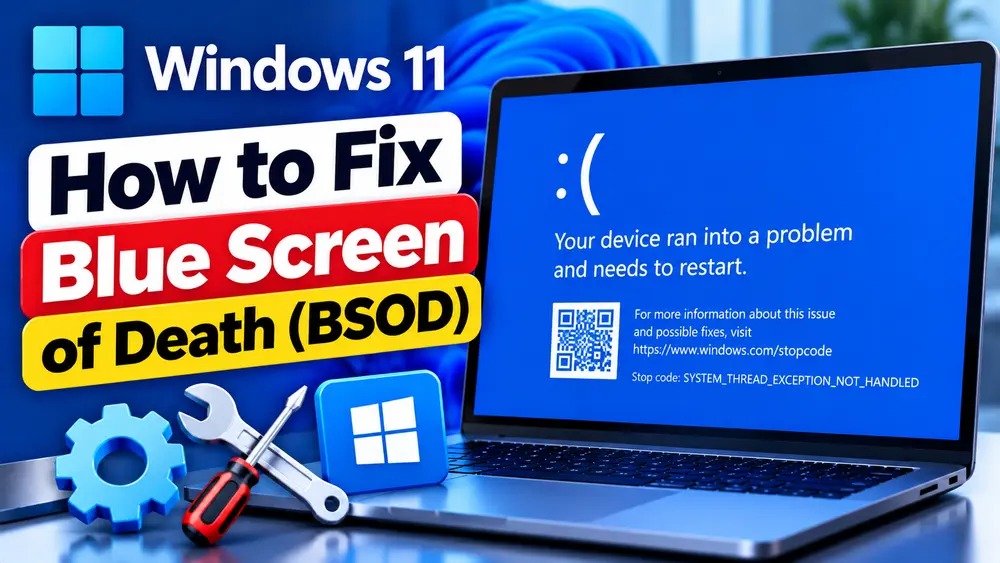
The Windows 11 Blue Screen of Death, commonly called a BSOD or stop code error, appears when Windows encounters a serious problem and cannot safely continue running. Windows stops the operating system to help prevent further system or data damage and may restart automatically.
Microsoft also refers to these failures as stop errors, bug checks, or system crashes. The appearance of the screen can vary between Windows 11 versions. On some current Windows 11 versions, the unexpected-error screen may appear black rather than the traditional blue screen.
A BSOD is not a diagnosis by itself. The important information is the stop code displayed on the screen and, when available, the name of the module or driver associated with the failure.
For example, seeing a stop code tells you that Windows encountered a specific class of system failure. It does not automatically prove that a particular hardware component or driver is defective. The same general symptoms can have different underlying causes.
If the computer crashes once and then works normally, the incident may have been temporary. If Windows repeatedly crashes with the same or related stop errors, the pattern deserves proper investigation.
Why Does Windows 11 Show a Blue Screen?
A Windows 11 BSOD can result from several different layers of the system. Microsoft identifies hardware devices, device drivers, and software among the possible sources of unexpected stop errors.
Faulty or incompatible drivers
Drivers operate between Windows and hardware such as graphics adapters, storage devices, network adapters, audio hardware, and other components. A defective, incompatible, recently changed, or corrupted driver can contribute to a stop error.
However, not every BSOD is caused by a driver. Repeatedly installing drivers without first identifying the affected device can make troubleshooting harder.
Hardware problems
Defective memory, storage problems, unstable hardware, newly installed components, or other hardware faults can contribute to crashes. Hardware should become a stronger suspect when crashes continue despite software troubleshooting or occur during particular hardware-intensive activities.
Windows component corruption
Damaged or inconsistent Windows system files and component-store files can cause system instability. This is one reason Microsoft provides DISM and System File Checker as built-in repair tools.
Windows updates
A Windows update can sometimes be associated with a new problem, particularly when the crash begins immediately after an update or changes the behavior of a particular device. An update may also contain fixes for an existing stability problem.
The timing matters. If the BSOD started immediately after an update, record that fact before changing anything else.
Recently installed software
Software that installs system-level components, security filters, virtualization components, storage drivers, or other low-level integrations can sometimes be involved in system crashes. A normal application is less likely to directly cause a kernel stop error, but it can still expose an underlying driver or system problem.
Storage or memory problems
Windows relies heavily on system memory and storage. Problems involving either can produce instability and, depending on the failure, different stop codes or symptoms.
The exact stop code and crash pattern are therefore much more useful than simply searching for “Windows 11 BSOD fix” and applying every suggested solution.
What Information Should You Record Before Troubleshooting?
Before changing drivers, uninstalling software, or running advanced repair tools, record what happened.
- Stop code: Write down the exact stop code shown on the BSOD.
- Driver or module name: If Windows displays one, record it exactly.
- What you were doing: Note whether you were gaming, browsing, transferring files, waking the PC, installing software, or performing another task.
- Recent changes: Record any Windows update, driver installation, hardware installation, BIOS/firmware change, or new software installed shortly before the crashes began.
- Boot behavior: Determine whether Windows starts normally afterward or enters a restart loop.
- Frequency: Note whether it happened once, several times, or repeatedly.
- Conditions: Determine whether crashes occur during heavy workloads, when connecting a particular device, or apparently at random.
The exact stop code matters because Microsoft maintains documentation for individual bug checks, and crash information can sometimes point toward a particular category of problem.
If Windows is generating crash dump information, that data can provide considerably more detail for advanced diagnosis. Dump analysis is primarily intended for experienced users, IT professionals, and developers, but the existence of a dump can be useful information when escalating a recurring BSOD.
How to Fix Windows 11 Blue Screen of Death
1. Restart Windows and determine whether the crash repeats
Why this may help: Microsoft notes that many unexpected Windows restarts are resolved by the restart itself. A one-time crash does not necessarily mean that the computer has a persistent hardware or software failure.
If Windows has restarted normally, use the PC normally for a while and observe whether the same problem returns.
If it does happen again, compare the circumstances with the first crash. Did the same application run? Was the same device connected? Did the same stop code appear?
What you should see: If the problem was temporary, Windows may continue working normally without another BSOD.
If it does not work: If the crash repeats, continue with the next diagnostic steps rather than simply restarting the computer over and over.
Risk: Very low.
2. Install available Windows updates
Why this may help: Microsoft recommends keeping Windows updated when troubleshooting stop errors. Updates can contain fixes for Windows components and compatibility problems.
Open:
Settings > Windows Update
Select Check for updates and install applicable updates. Restart the PC if Windows requests it.
Do not assume that installing every optional update is the correct response to every BSOD. If the problem began immediately after a particular update, record that fact first.
What you should see: Windows should report whether updates are available and whether a restart is required.
If it does not work: If the BSOD continues with the same pattern, investigate drivers, software, memory, storage, and Windows system integrity.
Risk: Low, although any system update can change system behavior. Keep important data backed up.
3. Investigate Device Manager instead of updating every driver
Why this may help: Device Manager can reveal hardware devices with problems and gives you a way to investigate a driver when the crash pattern points toward a particular device.
Right-click Start and select Device Manager.
Look for devices displaying a warning indicator and examine devices related to the hardware involved in the crash.
If the BSOD began after a driver update, open the relevant device’s properties and check the Driver tab. If a previous driver is available, Roll Back Driver may be appropriate.
For example, if crashes began immediately after a graphics driver change and the stop error or symptoms point toward graphics activity, investigate the display adapter rather than randomly changing unrelated drivers.
For drivers that Windows Update does not provide, use the PC or hardware manufacturer’s official support resources rather than third-party driver-updater programs.
What you should see: You may find a device with an obvious warning, a recently changed driver, or a driver that can be rolled back.
If it does not work: If Device Manager provides no useful clue, continue with Windows repair and diagnostic testing.
Risk: Low for inspection. Driver rollback, uninstall, or replacement is more advanced and should be targeted to the suspected device.
4. Remove a recently installed driver, device, or software change when appropriate
Why this may help: A strong temporal relationship is valuable evidence. If Windows worked correctly until a specific driver, hardware device, or system-level application was installed, reversing that change can test the hypothesis.
If you installed new hardware immediately before the crashes began, shut down the PC and remove the new hardware when this can be done safely and according to the manufacturer’s instructions.
If a recently installed driver is suspected, use Device Manager to roll it back when that option is available.
If newly installed software clearly coincides with the crashes, uninstalling that software can also be a reasonable diagnostic step.
What you should see: If the recent change was responsible, the BSOD may stop after the change is reversed.
If it does not work: Do not keep uninstalling unrelated programs. Move to Safe Mode, system-file repair, memory testing, or other evidence-based diagnostics.
Risk: Moderate because removing hardware, drivers, or software changes the system configuration.
5. Check available storage
Why this may help: Windows and applications require free storage for normal operating-system tasks. Microsoft includes checking available disk space among its basic troubleshooting recommendations for stop errors.
Open:
Settings > System > Storage
Review the available space on the Windows system drive.
If storage is nearly full, use Windows’ built-in storage recommendations to identify files that can safely be removed or moved after you have verified that important personal data is backed up.
Do not randomly delete files from Windows system folders to create space.
What you should see: You should have enough free space for Windows and applications to operate normally.
If it does not work: If adequate storage is available and crashes continue, storage capacity itself is less likely to explain the problem. Storage hardware can still be investigated separately when the crash pattern points in that direction.
Risk: Low when using Windows storage tools and carefully reviewing personal files.
6. Run DISM to repair the Windows component store
Why this may help: DISM can repair the Windows component store. If Windows components are damaged or inconsistent, repairing the component store can resolve problems that affect system stability.
Open Command Prompt as administrator and run:
DISM.exe /Online /Cleanup-Image /RestoreHealthIn plain English: /Online tells DISM to work with the currently running Windows installation. /Cleanup-Image specifies the Windows image, while /RestoreHealth tells DISM to scan for component-store corruption and attempt to repair it.
The command can take time. Do not interrupt it simply because progress appears unchanged temporarily.
What you should see: DISM should eventually report a completion result.
If it does not work: Record the exact DISM error. Do not start adding unrelated switches or commands from unofficial websites.
Risk: Low when the documented command is used correctly, but this is an advanced repair operation.
7. Run System File Checker after DISM
Why this may help: System File Checker checks protected Windows system files and attempts to repair files that are corrupted or modified incorrectly.
After DISM completes, open an administrator Command Prompt and run:
sfc /scannowIn plain English: SFC scans protected system files and attempts to repair integrity problems it finds.
Allow the scan to reach 100%.
What you should see: SFC reports whether it found integrity violations and whether it was able to repair them.
If it does not work: Restart Windows and test whether the BSOD returns. If SFC reports that it could not repair some files, keep that result as part of your diagnosis rather than assuming the crash has been fixed.
Risk: Low, although administrator access is required.
8. Use Safe Mode when normal Windows is unstable
Why this may help: Safe Mode starts Windows with a limited set of files, drivers, and services. If the BSOD stops occurring in Safe Mode, that provides useful evidence that something loaded during normal Windows operation may be involved.
If Windows can reach the desktop, open:
Settings > System > Recovery
Under Advanced startup, select Restart now.
After Windows enters the recovery environment, select the appropriate troubleshooting options to reach Startup Settings, restart, and choose the Safe Mode option.
Microsoft also provides Windows Recovery Environment when Windows cannot start normally.
What you should see: Windows starts with a more limited environment than normal.
If it does not work: If the computer crashes even in Safe Mode, the problem may require deeper Windows or hardware investigation. Safe Mode is not proof of a hardware failure, but it is useful diagnostic evidence.
Risk: Low.
9. Test memory when the crash pattern points toward RAM
Why this may help: Faulty system memory can cause instability and stop errors. Windows includes the Windows Memory Diagnostic tool for testing memory.
Save your work, then press Windows + R and enter:
mdschedSelect Restart now and check for problems.
Windows will restart and perform the memory test.
After Windows starts again, check for the diagnostic result. If you need to review the result later, Microsoft documents using Event Viewer to find the Windows Memory Diagnostic results.
What you should see: The diagnostic tool performs memory tests before Windows returns to normal operation.
If it does not work: A test that reports no memory errors does not prove that every hardware component is healthy. If crashes continue, investigate the other evidence rather than replacing RAM automatically.
Risk: Low, but the test requires a restart.
10. Use System Restore when a recent change clearly preceded the crashes
Why this may help: System Restore can return system files, installed programs, registry settings, and system configuration to the state represented by an available restore point. It is particularly useful when instability began after a recent software installation, driver change, or other system modification.
System Restore does not normally remove personal files, but applications and system changes made after the selected restore point can be affected.
You can access recovery tools through Windows Recovery Environment when necessary.
What you should see: If a suitable restore point exists, Windows allows you to select a point from before the problem began.
If it does not work: If there is no suitable restore point or the BSOD remains afterward, continue with Windows recovery options.
Risk: Moderate. Review which applications and system changes may be affected before confirming the restore.
11. Use Windows recovery options when Windows cannot boot normally
Why this may help: Windows Recovery Environment provides built-in tools for computers that cannot start correctly, repeatedly restart, or remain on a blue or error screen.
If Windows fails to start correctly several times, Windows may enter the recovery environment automatically. From there, available options can include Startup Repair, System Restore, Startup Settings for Safe Mode, and other recovery tools depending on the situation.
Microsoft recommends choosing the recovery option that matches the problem and starting with the least disruptive option.
Before using recovery options that can affect applications, settings, or data, back up important files whenever possible.
What you should see: Windows Recovery Environment should provide troubleshooting and recovery choices rather than the normal desktop.
If it does not work: If Windows cannot be repaired through the available recovery options, a Windows repair or reinstall may eventually be necessary.
Risk: Moderate to high depending on the recovery option selected.
How to Identify the Cause of a Windows 11 BSOD
The most useful BSOD troubleshooting starts with evidence, not a list of generic fixes.
Look for repetition
If the same stop code appears repeatedly, record it. If different stop codes appear but the crashes happen under the same circumstances, record that pattern too.
Compare the crash with recent changes
Ask what changed immediately before the problem started. A new driver, Windows update, hardware device, system-level application, or configuration change can provide an important lead.
Check Device Manager
Look for devices with warning indicators and examine devices connected to the circumstances of the crash. Do not assume that every device needs a driver update.
Check Event Viewer when appropriate
Microsoft recommends checking the system log for events occurring around the same time as a stop error. Event Viewer may provide supporting evidence, although not every event near a crash is its cause.
Use crash dumps for recurring or complex failures
Windows can create dump information when a bug check occurs. Advanced users and technicians can analyze these dumps with Windows debugging tools to look for evidence of the failing code or driver.
A driver name shown in a crash is useful evidence, but it should still be interpreted in context. The module named at the time of a crash is not always sufficient by itself to establish the ultimate root cause.
What to Do If Windows 11 Keeps Blue-Screening
Repeated BSODs should be treated differently from a single isolated crash.
Start by recording whether the stop code is the same each time. Then determine whether the crashes occur during a particular activity or after a particular change.
- If crashes began after a driver update, investigate rollback or replacement of that specific driver.
- If crashes began after new hardware was installed, remove the hardware when appropriate and check the manufacturer’s compatibility guidance.
- If crashes occur during normal use and Windows system files may be damaged, run DISM followed by SFC.
- If crashes suggest possible memory problems, run Windows Memory Diagnostic.
- If Windows crashes during normal startup but works in Safe Mode, investigate software and drivers that are not loaded in the same way in Safe Mode.
- If Windows cannot boot normally, use Windows Recovery Environment rather than repeatedly forcing restarts.
If the crash remains unexplained after these steps, professional analysis of crash dumps and hardware diagnostics may be more useful than continuing to apply unrelated fixes.
When You Should Suspect a Hardware Problem
Hardware becomes a stronger suspect when the BSODs continue after reasonable Windows and driver troubleshooting, occur under repeatable hardware conditions, or are accompanied by other hardware-related symptoms.
Examples include crashes that occur consistently during heavy workloads, memory-test errors, newly installed hardware followed by immediate instability, or problems that persist after Windows software repairs.
Microsoft recommends using hardware diagnostics supplied by the system manufacturer when hardware is suspected.
Do not replace the motherboard, RAM, SSD, or other expensive components simply because a BSOD occurred. Use the stop code, crash pattern, diagnostics, and recent hardware changes to build evidence first.
Frequently Asked Questions
Is a BSOD dangerous?
A BSOD indicates that Windows encountered a serious condition and stopped rather than continuing in an unsafe state. A single BSOD does not necessarily mean the PC is permanently damaged. Repeated BSODs should be investigated because they can indicate an unresolved driver, hardware, software, or Windows problem.
Can a BSOD damage hardware?
A normal Windows stop error is not itself evidence that hardware has been physically damaged. Windows uses the stop mechanism to halt the operating system when it encounters a serious problem. If crashes repeatedly occur, however, an underlying hardware fault may need to be investigated.
Why does Windows 11 keep crashing?
Repeated crashes can have many causes, including problematic drivers, hardware faults, Windows component corruption, software changes, updates, memory problems, or storage-related problems. The stop code and circumstances surrounding each crash are important for narrowing the possibilities.
Can a Windows Update cause BSODs?
It can be associated with a BSOD in some situations, particularly when the crashes begin immediately after an update. That does not mean every BSOD after an update is caused by the update itself. Check the timing, stop code, affected hardware, and available recovery options.
Can faulty RAM cause BSODs?
Yes. Memory problems can contribute to system crashes and stop errors. Windows Memory Diagnostic can be used when the symptoms make memory a reasonable suspect. A clean memory test does not automatically rule out every hardware problem.
Should I use Safe Mode?
Safe Mode is especially useful when Windows is unstable during normal startup or when you need to determine whether the crash depends on components loaded during normal Windows operation. It is a diagnostic environment, not a universal BSOD repair.
Should I reinstall Windows?
Not as the first response to a BSOD. A reinstall can be appropriate when Windows cannot be repaired or the operating system has serious persistent problems, but first investigate the stop code, recent changes, drivers, system integrity, memory, and recovery options.
How do I find the Windows 11 stop code?
The stop code is displayed on the BSOD. Record the exact text if possible. If the screen disappears too quickly, Windows crash information and system logs may provide additional information. For recurring failures, crash dump analysis can provide more detailed evidence.
What if Windows cannot boot?
Windows may automatically enter Windows Recovery Environment after repeated unsuccessful starts. You can use recovery tools such as Startup Repair, Safe Mode through Startup Settings, or System Restore when appropriate. Choose the least disruptive option that matches the problem and back up important files whenever possible.
Final Thoughts
A Windows 11 Blue Screen of Death is a symptom, not a complete diagnosis. The most important mistake to avoid is treating every BSOD as a generic driver problem and installing random drivers or repair utilities.
Start with the evidence: record the stop code, note what you were doing, identify recent changes, and determine whether Windows can still boot normally. From there, use the least disruptive troubleshooting method that matches the evidence.
Windows Update, Device Manager, Safe Mode, DISM, SFC, Windows Memory Diagnostic, System Restore, and Windows Recovery Environment are useful built-in tools, but they serve different purposes. Use them according to the symptoms rather than running everything indiscriminately.
If the BSOD continues, especially when the same circumstances repeatedly trigger the crash, move toward targeted driver investigation, crash-dump analysis, or manufacturer hardware diagnostics. That approach is far more likely to identify the real cause than repeatedly reinstalling Windows or changing unrelated system settings.
Related Topics
- How to Start Windows 11 in Safe Mode
- How to Use DISM and SFC to Repair Windows 11
- How to Fix Windows 11 Update Problems
- How to Run Windows Memory Diagnostic in Windows 11
- How to Use System Restore in Windows 11