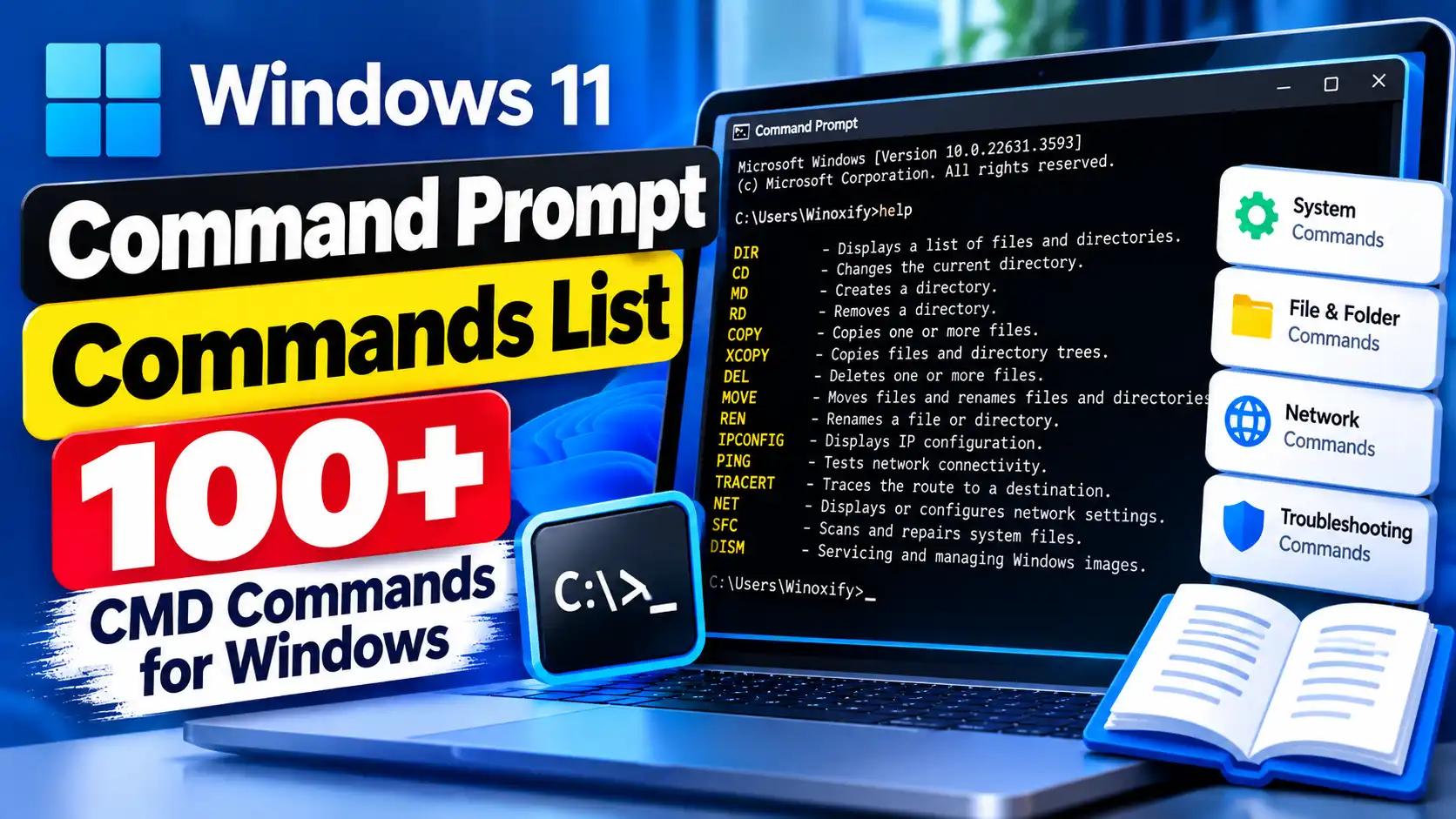
Windows Command Prompt is still one of the most useful built-in tools for troubleshooting, system administration, file management, networking, and automation. Although Windows 11 provides graphical tools for most everyday tasks, some problems are easier to investigate from the command line.
This Command Prompt commands list contains more than 100 useful Windows CMD commands and command examples. Instead of simply listing command names, each entry explains what the command does, when to use it, how to run it, what to look for in the result, and what to be careful about.
You can use this guide as a practical CMD commands cheat sheet for Windows 11 troubleshooting, networking, file management, system repair, disk management, processes, services, and basic automation.
Important: Not all Command Prompt commands are harmless. Some can delete files, modify disks, change services, alter boot configuration, or affect Windows settings. Never run an unfamiliar command just because a website says it will “fix” Windows. Understand the command and its parameters first.
What Are CMD Commands?
CMD commands are commands that can be entered into the Windows Command Prompt, which uses the cmd.exe command interpreter.
They can be used for tasks such as:
- Checking Windows and hardware information
- Diagnosing network and internet problems
- Managing files and folders
- Checking disk and file-system problems
- Repairing Windows system components
- Viewing running processes
- Checking Windows services
- Managing local users and groups
- Working with environment variables
- Creating simple batch scripts
- Managing certain Windows configuration tasks
Microsoft maintains a Windows command reference covering commands available in Windows 11 and other supported Windows versions.
How to Open Command Prompt in Windows 11
Open CMD normally
- Open the Start menu.
- Type Command Prompt.
- Select Command Prompt.
Open CMD with the Run dialog
Press:
Windows + RThen type:
cmdPress Enter.
Open Command Prompt as administrator
Some commands require elevated permissions. Search for Command Prompt in Start, right-click it, and choose Run as administrator.
Do not automatically run every command as administrator. Use elevation only when the command actually requires it.
Command Prompt Commands vs. Command Prompt Codes
People commonly search for phrases such as command prompt codes, CMD codes, Windows CMD commands, and command prompt commands list.
These phrases generally refer to commands entered into Command Prompt. The technically accurate term is Windows Command Prompt commands or Windows commands.
Quick CMD Commands Cheat Sheet
| Command | Common Use |
|---|---|
cd |
Change folders |
dir |
List files and folders |
mkdir |
Create a folder |
copy |
Copy files |
move |
Move files |
del |
Delete files |
robocopy |
Copy files and folders reliably |
ipconfig |
Check IP/network configuration |
ping |
Test network connectivity |
tracert |
Trace a network route |
nslookup |
Test DNS resolution |
netstat |
View network connections |
tasklist |
View running processes |
taskkill |
Terminate a process |
systeminfo |
View system information |
driverquery |
List installed drivers |
sfc |
Check protected Windows files |
DISM |
Service and repair Windows images |
chkdsk |
Check a file system and volume |
sc |
Query/manage services |
shutdown |
Shut down or restart Windows |
diskpart |
Manage disks and partitions |
bcdedit |
Inspect/manage boot configuration |
100+ Useful Command Prompt Commands for Windows 11
The following commands are organized by purpose so you can find the right command for a particular task instead of trying commands randomly.
1. Basic Command Prompt Commands
1. help
What it does: Displays a list of available commands or detailed help for a particular command.
When to use it: Use it when you know the command name but do not remember its syntax or available options.
helpFor command-specific help:
help ipconfigWhy it is useful: This is one of the safest ways to learn what a CMD command supports without relying on an outdated third-party guide.
2. cls
What it does: Clears the visible Command Prompt window.
clsWhen to use it: Useful when your screen contains several previous commands and you want a clean workspace before continuing troubleshooting.
Safety: It only clears the visible console; it does not delete files or undo previous commands.
3. cd
What it does: Changes the current directory.
cd C:\Users\YourName\DocumentsWhen to use it: Use cd before running a command against files located in another folder.
To move up one directory:
cd ..To switch drives and directories together:
cd /d D:\BackupsTip: Use quotation marks around paths when necessary, especially when working with commands or scripts that contain spaces.
4. dir
What it does: Lists files and directories in the current location.
dirWhen to use it: Use it when you need to confirm whether a file or folder exists before copying, moving, renaming, or deleting it.
To include hidden and system items:
dir /aPractical example: If a troubleshooting guide tells you to find a configuration file in a folder, run dir first rather than assuming the file exists.
5. echo
What it does: Displays text or the value of an environment variable.
echo Hello WindowsWhen to use it: It is useful for testing batch scripts and checking environment-variable values.
For example:
echo %USERNAME%This displays the current user’s environment variable value.
6. exit
What it does: Closes the current Command Prompt session.
exitWhen to use it: Use it when you have finished working in CMD or want to close a nested command shell.
7. ver
What it does: Displays Windows version information exposed by the command interpreter.
verWhen to use it: It can provide a quick version check, although systeminfo provides considerably more information.
8. hostname
What it does: Displays the computer’s host name.
hostnameWhen to use it: Useful when identifying a PC on a network, documenting a system, or troubleshooting network configuration.
9. title
What it does: Changes the title displayed in the Command Prompt window.
title Windows TroubleshootingWhen to use it: Particularly useful when several Command Prompt windows are open and you want to identify them quickly.
10. color
What it does: Changes the console’s foreground and background color settings.
color 0AWhen to use it: Mostly useful for personalizing CMD or visually distinguishing a troubleshooting console from another command window.
2. File and Folder Commands
11. mkdir
What it does: Creates a new directory.
mkdir C:\WinoxifyTestWhen to use it: Useful when creating a destination folder for backups, test files, or troubleshooting output.
12. rmdir
What it does: Removes a directory.
rmdir C:\WinoxifyTestWhen to use it: Use it after confirming that the directory is no longer needed.
Important: Be particularly careful with recursive removal options because they can remove directory contents.
13. copy
What it does: Copies files from one location to another.
copy report.txt D:\Backup\When to use it: Useful for making a simple copy of a configuration file or document before changing it.
14. move
What it does: Moves files or directories.
move report.txt D:\Documents\When to use it: Useful when reorganizing files from the command line or working inside a script.
15. del
What it does: Deletes one or more files.
del C:\Temp\oldfile.txtWhen to use it: Useful for removing a specific unwanted file or for scripted cleanup.
Important: Never use wildcard deletion until you understand exactly which files match the pattern. A command such as del *.log can affect many files.
16. ren
What it does: Renames a file or directory.
ren oldname.txt newname.txtWhen to use it: Useful when a troubleshooting procedure requires temporarily renaming a file or when organizing files from CMD.
17. type
What it does: Displays the contents of a text file.
type notes.txtWhen to use it: Useful for quickly reading small text files or checking a configuration/log file without opening Notepad.
18. more
What it does: Displays long output one screen at a time.
type large-log.txt | moreWhen to use it: Useful when a command produces more output than fits in the Command Prompt window.
19. tree
What it does: Displays a directory structure.
tree C:\Users\YourName\DocumentsWhen to use it: Useful when investigating how folders are organized or documenting a directory structure.
20. attrib
What it does: Displays or changes file attributes.
attrib C:\Users\YourName\Documents\file.txtWhen to use it: Useful when troubleshooting files that appear hidden or have special attributes.
Important: Do not blindly remove attributes from system files simply because they appear hidden.
21. where
What it does: Finds executable files that match a specified command.
where notepadWhen to use it: Useful when you want to determine which executable Windows finds when you type a program name.
22. fc
What it does: Compares two files and displays differences.
fc file1.txt file2.txtWhen to use it: Useful for comparing configuration files before and after a change.
23. robocopy
What it does: Provides advanced file and directory copying functionality.
robocopy C:\Documents D:\Backup\Documents /EWhen to use it: Useful for copying large directory trees, creating structured backups, or performing repeatable file-copy operations.
Important: Robocopy has powerful options. Test complicated commands before using them on important data.
24. clip
What it does: Sends command output directly to the Windows clipboard.
ipconfig /all | clipWhen to use it: Useful when you need to paste diagnostic information into an email, support ticket, or text document.
3. System Information Commands
25. systeminfo
What it does: Displays detailed information about Windows and the computer.
systeminfoWhen to use it: Use it when troubleshooting Windows and you need information about the operating system, installation, hardware, memory, updates, or system configuration.
You can save the results:
systeminfo > system-info.txt26. whoami
What it does: Displays information about the currently logged-in user.
whoamiWhen to use it: Useful when troubleshooting permissions or confirming which account is running a command.
27. driverquery
What it does: Displays information about installed device drivers.
driverqueryWhen to use it: Useful when investigating driver-related problems, especially after a Windows upgrade or hardware change.
You can save the output:
driverquery > drivers.txt28. set
What it does: Displays or manages environment variables in the current CMD environment.
setWhen to use it: Useful when troubleshooting environment variables or understanding why a command can or cannot be found.
To check one variable:
set PATH29. path
What it does: Displays or modifies the command search path.
pathWhen to use it: Useful when Windows reports that an executable is not recognized even though the program may be installed.
Important: Changing PATH incorrectly can prevent command-line applications from being found.
30. msinfo32
What it does: Launches the Windows System Information utility.
msinfo32When to use it: Useful when you need a graphical view of detailed hardware, system, and software information.
4. Process and Application Commands
31. tasklist
What it does: Lists currently running processes.
tasklistWhen to use it: Useful when an application is frozen, a process is consuming resources, or you need to identify a process ID.
For more detailed service association:
tasklist /svc32. taskkill
What it does: Terminates a running process.
taskkill /PID 1234When to use it: Use it when a specific application has stopped responding and normal closing methods are unavailable.
Important: Confirm the PID and process before terminating it. Do not randomly kill Windows system processes.
33. start
What it does: Starts a program, folder, document, or command through the Windows shell.
start notepad.exeWhen to use it: Useful in scripts or when you want to launch a Windows application from CMD.
34. cmd
What it does: Starts a new instance of the Windows command interpreter.
cmdWhen to use it: Useful for starting a separate command shell or running commands through a batch/script context.
For example:
cmd /c dirThis runs the command and then exits the new command interpreter.
5. Network and Internet CMD Commands
35. ipconfig
What it does: Displays TCP/IP configuration information for network adapters.
ipconfigWhen to use it: Use it when troubleshooting Wi-Fi, Ethernet, DHCP, IP-address, or gateway problems.
For detailed information:
ipconfig /allWhat to look for: Check the active adapter’s IPv4 address, default gateway, DNS servers, and DHCP information.
36. ipconfig /flushdns
What it does: Clears the local DNS resolver cache.
ipconfig /flushdnsWhen to use it: Useful when DNS information cached locally may be contributing to a name-resolution problem, such as after a DNS change.
Important: Clearing the DNS cache does not repair every internet problem. If the PC has no valid network configuration, investigate that first.
37. ipconfig /release
What it does: Releases the current DHCP configuration for applicable network adapters.
ipconfig /releaseWhen to use it: Useful when troubleshooting DHCP or IP-address problems.
Important: Your network connection may temporarily lose its IP configuration until it is renewed.
38. ipconfig /renew
What it does: Requests a renewed DHCP configuration.
ipconfig /renewWhen to use it: Useful after releasing an address or when investigating a DHCP-related connectivity problem.
39. ping
What it does: Tests network reachability to an IP address or hostname.
ping google.comWhen to use it: Useful for determining whether a destination responds over the network.
A useful troubleshooting sequence is:
ping 127.0.0.1
ping <your-default-gateway>
ping google.com
Important: A failed ping does not automatically prove that the internet is down. Some devices and servers do not respond to ICMP echo requests.
40. tracert
What it does: Displays the route taken toward a destination.
tracert google.comWhen to use it: Useful when a connection works inconsistently and you need more information about where packets may be encountering problems.
41. pathping
What it does: Combines route information with network statistics.
pathping google.comWhen to use it: Useful when investigating packet loss or latency along a network path.
Tip: Pathping can take time because it performs additional measurements.
42. nslookup
What it does: Queries DNS information for a domain or host.
nslookup example.comWhen to use it: Useful when websites fail to resolve by name or when you suspect a DNS problem.
Practical diagnosis: If an IP address is reachable but DNS name resolution fails, DNS becomes an important area to investigate.
43. netstat
What it does: Displays network connections, listening ports, and related information.
netstat -anoWhen to use it: Useful when troubleshooting network applications or identifying which process owns a connection.
The -o option includes the process ID, which can then be compared with tasklist.
44. arp
What it does: Displays the local ARP cache.
arp -aWhen to use it: Useful for advanced troubleshooting involving local IPv4 network-address resolution.
45. route
What it does: Displays or modifies the local routing table.
route printWhen to use it: Use the display function when investigating unusual routing behavior.
Important: Modifying routes can change how traffic leaves your computer. Do not add or delete routes unless you understand the network configuration.
46. getmac
What it does: Displays MAC addresses associated with network adapters.
getmacWhen to use it: Useful when identifying a network adapter or documenting a PC’s network hardware address.
47. netsh
What it does: Provides command-line access to various network configuration and diagnostic functions.
netsh /?When to use it: Useful for advanced Windows networking tasks when the specific netsh context is known.
Important: Do not copy arbitrary netsh reset or configuration commands from unrelated troubleshooting guides. Network commands can change important configuration.
6. Windows Repair Commands
48. sfc /scannow
What it does: Scans protected Windows system files and attempts to repair problems it can address.
sfc /scannowWhen to use it: Useful when Windows shows symptoms that may be related to corrupted or modified protected system files.
What to expect: SFC can take time. When it finishes, read the final message because it tells you whether integrity violations were found and whether repairs were completed.
49. sfc /verifyonly
What it does: Checks the integrity of protected Windows system files without performing the repair operation.
sfc /verifyonlyWhen to use it: Useful when you want to perform a verification before attempting repair.
50. DISM /Online /Cleanup-Image /RestoreHealth
What it does: Services the currently running Windows image and attempts to repair component-store corruption.
DISM /Online /Cleanup-Image /RestoreHealthWhen to use it: Useful when troubleshooting Windows component corruption or when SFC problems indicate that the underlying component store may need attention.
Important: Do not assume that every Windows problem requires DISM. Use it when the symptoms justify system-image repair.
51. chkdsk
What it does: Checks a volume’s file system and can perform supported repair operations with appropriate options.
chkdsk C:When to use it: Useful when you suspect file-system problems, disk-related errors, or corruption affecting a volume.
Important: Repair options can take significant time and may require a restart when the volume is in use. Make sure important data is backed up before performing operations that can modify the file system.
52. chkntfs
What it does: Displays or configures automatic disk checking behavior during Windows startup.
chkntfs C:When to use it: Useful when investigating whether Windows has scheduled a file-system check for a volume.
53. reagentc
What it does: Manages Windows Recovery Environment configuration.
reagentc /infoWhen to use it: Useful when investigating whether Windows Recovery Environment is enabled and configured.
Important: Do not change recovery configuration unless you understand the recovery implications.
7. Windows Services Commands
54. sc query
What it does: Queries Windows service information.
sc query wuauservWhen to use it: Particularly useful when troubleshooting Windows Update or another service that appears stopped or unavailable.
What to look for: The output includes the service state, which helps determine whether the service is running.
55. sc qc
What it does: Displays configuration information for a Windows service.
sc qc wuauservWhen to use it: Useful when you need more information about how a service is configured.
56. net start
What it does: Displays running services or starts a specified service.
net startTo start a specific service:
net start wuauservWhen to use it: Use a specific service name only when you have identified that the service needs to be running.
57. net stop
What it does: Stops a specified service.
net stop wuauservWhen to use it: Some troubleshooting procedures require a specific service to be stopped temporarily before another operation.
Important: Do not stop random Windows services. Other components may depend on them.
58. tasklist /svc
What it does: Shows running processes and the services associated with them.
tasklist /svcWhen to use it: Useful when you need to understand which Windows services are hosted by a particular process.
8. User and Account Commands
59. net user
What it does: Displays or manages local user-account information, depending on the syntax and permissions used.
net userWhen to use it: Useful for viewing local account names during troubleshooting or administration.
Important: Account-management commands can affect access to the computer. Do not modify accounts unless you understand the consequences.
60. net localgroup
What it does: Displays or manages local groups.
net localgroupWhen to use it: Useful when investigating local group membership and permissions.
61. whoami /groups
What it does: Displays the security groups associated with the current user session.
whoami /groupsWhen to use it: Useful when troubleshooting permissions or determining which security groups apply to the current session.
62. cmdkey /list
What it does: Displays stored Windows credentials managed by Credential Manager through the command line.
cmdkey /listWhen to use it: Useful when troubleshooting stored-credential problems involving network resources or applications.
Security warning: Credentials are sensitive information. Do not post credential output publicly or send it to strangers.
63. runas
What it does: Runs a program under different credentials.
runas /user:Administrator cmdWhen to use it: Useful when an administrator needs to launch a program under another account for a specific task.
Important: Make sure you understand which account will execute the program and what permissions it has.
9. Disk and Storage Commands
64. diskpart
What it does: Provides command-line tools for managing disks, partitions, and volumes.
diskpartWhen to use it: DiskPart is intended for advanced disk-management tasks that are not always convenient through the graphical Disk Management interface.
Critical warning: DiskPart contains destructive commands. A command such as clean can remove partition information from the selected disk. Always identify the correct disk before performing any modification.
65. list disk
What it does: Lists disks after entering DiskPart.
diskpart
list disk
When to use it: Useful for identifying which physical disks Windows currently detects.
Important: Do not select or modify a disk until you have confirmed its size and identity.
66. list volume
What it does: Lists detected volumes inside DiskPart.
diskpart
list volume
When to use it: Useful when investigating drive letters, volumes, and partition layout.
67. format
What it does: Formats a volume with a selected file system and configuration.
format E:When to use it: Use it only when you intentionally want to format a volume.
Critical warning: Formatting can make existing data inaccessible. Verify the drive letter and back up important data before proceeding.
68. vol
What it does: Displays a volume label and serial number.
vol C:When to use it: Useful for identifying a volume when documenting or troubleshooting storage.
69. fsutil
What it does: Provides advanced file-system management functionality.
fsutil /?When to use it: Use it for specific advanced file-system investigations when you understand the required subcommand.
Important: Many fsutil operations are intended for advanced administration. Do not execute commands copied from an unrelated guide without understanding their effect.
70. defrag
What it does: Provides command-line access to Windows drive-optimization functionality.
defrag C:When to use it: Useful for inspecting or invoking supported drive-optimization operations from the command line.
Windows handles storage optimization according to the type and configuration of the drive, so manual optimization should not be treated as a universal cure for a slow PC.
71. compact
What it does: Displays or changes NTFS file or directory compression information.
compactWhen to use it: Useful when investigating NTFS compression on a Windows volume.
72. cipher
What it does: Displays or manages information related to NTFS encryption features and encrypted files.
cipher /?When to use it: Use it only when you specifically need to inspect or manage the relevant encryption functionality.
Important: Encryption-related operations can affect access to data. Understand the command before using modification options.
10. Windows Startup and Boot Commands
73. shutdown
What it does: Shuts down, restarts, signs out, or otherwise controls the local computer’s shutdown process depending on the selected options.
shutdown /s /t 0When to use it: Useful in scripts or when you need a command-line restart or shutdown.
74. shutdown /r
What it does: Restarts Windows.
shutdown /r /t 0When to use it: Useful after troubleshooting changes that require a restart or when creating an automated maintenance script.
75. shutdown /a
What it does: Attempts to cancel a pending shutdown.
shutdown /aWhen to use it: Useful if a scheduled shutdown has been initiated and you need to cancel it.
76. shutdown /l
What it does: Signs out the current user.
shutdown /lWhen to use it: Useful in scripts or administration tasks where a command-line sign-out is required.
77. bcdedit
What it does: Displays and manages Windows Boot Configuration Data.
bcdeditWhen to use it: Primarily useful when investigating advanced Windows boot configuration problems.
Critical warning: Incorrect BCD modifications can prevent Windows from starting normally. Inspect configuration before changing it, and have an appropriate recovery method available.
78. bcdboot
What it does: Helps set up or repair Windows boot files in appropriate recovery and installation scenarios.
bcdboot /?When to use it: Generally used as part of specific boot-repair procedures rather than as a general Windows troubleshooting command.
Important: Boot repair requires identifying the correct Windows installation and system partition. Do not guess the partition or drive letter.
11. Command Output and Text Processing
79. find
What it does: Searches for a text string in files or command output.
find "error" logfile.txtWhen to use it: Useful when you have a large text or log file and want to locate lines containing a specific word.
80. findstr
What it does: Searches for strings and patterns in files or command output.
findstr /i "error failed warning" logfile.txtWhen to use it: Particularly useful for filtering Windows logs or long command output.
Practical example:
tasklist | findstr /i "chrome"This filters the process list to lines containing “chrome”.
81. sort
What it does: Sorts text input.
sort names.txtWhen to use it: Useful when organizing text output or preparing information for inspection.
82. more
What it does: Displays long command output one screen at a time.
systeminfo | moreWhen to use it: Useful when you want to read lengthy command output without it scrolling immediately past the console window.
83. clip
What it does: Copies command output to the clipboard.
systeminfo | clipWhen to use it: Useful when sending diagnostic output to technical support.
12. Environment Variables and Command Shell Tools
84. setx
What it does: Sets persistent environment variables.
setx MYVARIABLE "Example"When to use it: Useful when a program or script needs a persistent environment variable.
Important: Changing environment variables can affect applications and command-line tools. Verify the variable name and value before changing it.
85. call
What it does: Calls one batch script from another batch script.
call backup.batWhen to use it: Useful when building multi-file batch scripts and you need one script to invoke another.
86. if
What it does: Performs conditional processing in CMD scripts.
if exist report.txt echo File existsWhen to use it: Useful for creating batch scripts that perform different actions depending on whether a file, directory, or condition exists.
87. for
What it does: Repeats a command for a set of files or values.
for %f in (*.txt) do echo %fWhen to use it: Useful for processing multiple files from the command line.
Important: The syntax for an interactive CMD command and the equivalent command inside a batch file differs. In a batch file, the variable is normally written with double percent signs.
88. timeout
What it does: Pauses execution for a specified amount of time.
timeout /t 10When to use it: Useful in batch scripts when you need a controlled pause before the next operation.
89. pause
What it does: Pauses a batch script and waits for user input.
pauseWhen to use it: Useful when you want to keep a script window open so the user can read its output.
90. prompt
What it does: Changes the appearance of the command prompt.
prompt $P$GWhen to use it: Useful for customizing the console or making the current directory easier to identify.
13. File Associations and Windows Utilities
91. assoc
What it does: Displays or changes file-extension associations.
assocWhen to use it: Useful when investigating which file type associations Windows has configured.
Important: Changing associations can affect how files open. Inspect the current configuration before modifying it.
92. ftype
What it does: Displays or modifies the command associated with a file type.
ftypeWhen to use it: Useful for advanced troubleshooting of Windows file associations.
93. date
What it does: Displays or changes the system date through Command Prompt.
date /tWhen to use it: The display form is useful when documenting system information or checking the current system date.
94. time
What it does: Displays or changes the system time.
time /tWhen to use it: Useful for checking the current system time from scripts or CMD.
95. tzutil
What it does: Displays or manages Windows time-zone configuration.
tzutil /gWhen to use it: Useful when investigating time-zone configuration, particularly on systems where the displayed time appears incorrect.
96. logoff
What it does: Logs off a user session.
logoffWhen to use it: Useful for command-line administration or scripts that need to sign out a user.
97. mstsc
What it does: Starts the Remote Desktop client.
mstscWhen to use it: Useful when connecting to a Windows computer through Remote Desktop where the feature and permissions are appropriately configured.
98. comp
What it does: Compares the contents of files.
comp file1.txt file2.txtWhen to use it: Useful when checking whether two files contain identical data.
99. convert
What it does: Provides file-system conversion functionality for supported scenarios.
convert /?When to use it: Use the command’s help to determine whether the conversion you need is supported and what parameters are required.
Important: Disk and file-system changes should be approached cautiously and preceded by an appropriate backup.
100. cleanmgr
What it does: Provides access to Windows Disk Cleanup functionality on systems where the utility is available.
cleanmgrWhen to use it: Useful for accessing supported cleanup options from the command line.
Important: Do not assume every cleanup option is appropriate for every troubleshooting situation. Review what Windows is offering before removing data.
101. choice
What it does: Prompts a user to select an option in a batch script.
choice /C YN /M "Continue?"When to use it: Useful when creating interactive batch scripts that require a user decision.
102. goto
What it does: Moves execution to a labeled section in a batch script.
goto menuWhen to use it: Useful when building simple menus or branching logic in batch files.
103. setlocal
What it does: Starts localization of environment-variable changes in a batch script.
setlocalWhen to use it: Useful when you want temporary environment-variable changes to remain limited to a section of a batch script.
104. endlocal
What it does: Ends a localized environment section created by setlocal.
endlocalWhen to use it: Useful when building structured batch scripts that temporarily change environment variables.
105. shift
What it does: Changes the position of batch-script parameters.
shiftWhen to use it: Useful in more advanced batch scripts that accept multiple command-line arguments.
How to Get Help for Any CMD Command
You do not need to memorize every parameter of every command. Windows provides built-in help for many commands.
For example:
ipconfig /?or:
chkdsk /?You can also use:
helpTo get help for a specific command:
help robocopyThis is especially useful because command options can vary by command and Windows version.
Useful CMD Operators You Should Know
Knowing a few Command Prompt operators makes the commands above much more useful.
Redirect output to a file
systeminfo > systeminfo.txtThe > operator sends command output to a file rather than displaying it normally.
Append output to a file
ipconfig /all >> network-info.txtThe >> operator appends output instead of replacing existing content.
Pipe output into another command
tasklist | findstr /i "chrome"The pipe character sends the output of one command into another command.
Run another command after success
ipconfig /flushdns && ipconfig /renewThe && operator runs the second command only when the preceding command completes successfully.
Run another command regardless of the first result
command1 & command2The single & operator separates commands so the second command is executed after the first.
CMD Commands for Internet Troubleshooting
If your Windows 11 computer has an internet problem, do not randomly run every networking command. Use the output to narrow down the problem.
Step 1: Check the adapter configuration
ipconfig /allLook for the active adapter, IPv4 address, default gateway, and DNS servers.
Step 2: Test the local TCP/IP stack
ping 127.0.0.1Step 3: Test the router or default gateway
ping YOUR_DEFAULT_GATEWAYReplace the placeholder with the gateway shown by ipconfig.
Step 4: Test DNS resolution
nslookup example.comStep 5: Test a remote destination
ping example.comThis sequence gives you more useful information than repeatedly resetting network settings without knowing what is wrong.
CMD Commands for Windows Update Troubleshooting
Command Prompt can help diagnose Windows Update problems, but there is no single CMD command that fixes every update error.
For example, you can check the Windows Update service:
sc query wuauservYou can also inspect the Background Intelligent Transfer Service:
sc query bitsIf system-component corruption is suspected, Microsoft-supported Windows repair tools include:
DISM /Online /Cleanup-Image /RestoreHealthfollowed by:
sfc /scannowDo not run service-reset commands simply because a Windows Update error appears. First determine whether the problem is related to services, downloaded update data, component corruption, networking, a particular update, or another cause.
CMD Commands for a Slow Windows 11 PC
Command Prompt can provide useful diagnostic information when Windows becomes slow, but it should be used alongside Task Manager and other Windows diagnostic tools.
Start by checking running processes:
tasklistCheck system information:
systeminfoInspect drivers:
driverqueryCheck active network connections:
netstat -anoIf you suspect system-file corruption, consider the evidence before using:
sfc /scannowA slow computer can have many causes, including insufficient memory, storage problems, startup applications, drivers, background processes, thermal issues, malware, or failing hardware. CMD output alone will not diagnose every performance problem.
CMD Commands for Windows System Repair
The most commonly discussed Windows repair commands are DISM, sfc, and chkdsk, but they address different areas.
| Command | Main Purpose |
|---|---|
sfc /scannow |
Checks protected Windows system files |
DISM /Online /Cleanup-Image /RestoreHealth |
Services and repairs the Windows component store/image |
chkdsk C: |
Checks the file system on a volume |
These commands should not be treated as interchangeable. Choose the tool based on the problem you are actually investigating.
Are Command Prompt Commands Safe?
Command Prompt itself is not dangerous, but individual commands can have very different effects.
| Risk | Examples | Reason for caution |
|---|---|---|
| Low | dir, hostname, ver |
Mainly display information |
| Moderate | taskkill, net stop |
Can stop processes or services |
| High | del, format |
Can remove or modify data |
| Advanced | diskpart, bcdedit |
Can affect partitions or Windows startup |
Before running an unfamiliar command:
- Read its built-in help.
- Verify the command and every parameter.
- Confirm the drive, folder, or process you are targeting.
- Back up important data before potentially destructive operations.
- Use an elevated Command Prompt only when required.
- Do not copy commands from an untrusted source without understanding them.
Common CMD Mistakes to Avoid
Running everything as administrator
Administrative privileges provide greater access and therefore greater ability to change the system. Use elevation only when required.
Using wildcards without checking what they match
A command such as del *.tmp can affect many files. Always understand the path and wildcard pattern first.
Using disk commands on the wrong drive
DiskPart and formatting commands deserve particular caution. Confirm the disk number, size, partition, and volume before modifying anything.
Assuming every Windows problem needs SFC or DISM
SFC and DISM are valuable repair tools, but they are not universal solutions. A DNS problem, defective driver, failing SSD, disabled service, or incorrect network configuration requires a different diagnostic path.
Confusing Command Prompt with PowerShell
Command Prompt and PowerShell are different command-line environments. Some Windows commands can be used from both, but PowerShell also provides its own cmdlets and scripting capabilities.
Command Prompt vs. PowerShell
| Feature | Command Prompt | PowerShell |
|---|---|---|
| Primary shell | cmd.exe |
PowerShell |
| Traditional CMD commands | Native environment | Many can be invoked |
| Batch scripting | Strong support | Can invoke scripts but uses a different scripting model |
| Advanced automation | More limited | Much more extensive |
| Best for | Traditional Windows commands and simple troubleshooting | Advanced administration and automation |
If you are following a troubleshooting guide that specifically provides a CMD command, run it in Command Prompt unless the guide says otherwise.
Frequently Asked Questions About CMD Commands
What are CMD commands?
CMD commands are commands entered into the Windows Command Prompt using the cmd.exe command interpreter. They can be used for system administration, file management, networking, troubleshooting, and automation.
What are command prompt codes?
“Command prompt codes” is a common search term for Command Prompt commands. In practice, the terms CMD commands, Command Prompt commands, and Windows commands are often used to describe the same general category.
How do I see all CMD commands?
Type help in Command Prompt to display available command help. You can also use command /? for many commands to see their syntax and options.
What is the most useful CMD command?
There is no single best command because the useful command depends on the problem. For network problems, ipconfig and ping are useful. For Windows system-file problems, DISM and sfc are important. For process problems, tasklist and taskkill can help.
How do I open CMD in Windows 11?
Open Start, search for Command Prompt, and select it. You can also press Windows + R, type cmd, and press Enter.
How do I run CMD as administrator?
Search for Command Prompt from Start, right-click the result, and select Run as administrator. Windows may display a User Account Control prompt.
Which CMD command checks Windows system files?
sfc /scannow checks protected Windows system files and attempts to repair problems it can address.
Which CMD command repairs Windows?
DISM can service and repair Windows images. A commonly used online repair command is DISM /Online /Cleanup-Image /RestoreHealth. The appropriate repair command depends on the problem.
Which CMD command checks internet connectivity?
ping can test network reachability. ipconfig, nslookup, tracert, and pathping provide additional diagnostic information.
Which CMD command shows running processes?
tasklist displays currently running processes. You can use the resulting process ID with taskkill when a specific process needs to be terminated.
Can CMD commands damage Windows?
Yes. Some commands can delete files, modify disks, change services, or affect Windows boot configuration. Commands such as diskpart, format, del, and bcdedit require particular care.
Are CMD commands the same as PowerShell commands?
No. Command Prompt and PowerShell are different command-line environments. Some traditional Windows commands can be invoked from PowerShell, but PowerShell also has its own command and scripting system.
Final Thoughts
Command Prompt remains an important Windows 11 troubleshooting and administration tool. You do not need to memorize all of these commands. The most useful approach is to understand which command matches the problem you are investigating.
For everyday troubleshooting, start with commands such as ipconfig, ping, nslookup, tasklist, systeminfo, driverquery, chkdsk, sfc, DISM, and sc query.
For file management, learn cd, dir, mkdir, copy, move, ren, del, and robocopy.
For networking, learn ipconfig, ping, tracert, pathping, nslookup, and netstat.
For Windows repair, understand the different purposes of DISM, sfc, and chkdsk instead of running all three automatically.
Most importantly, treat CMD as a troubleshooting tool rather than a collection of magic commands. A good troubleshooting process identifies the symptom, gathers evidence, chooses a command that can provide useful information, interprets the result, and then takes the appropriate next step.
Suggested Internal Links for Winoxify
- How to Open Command Prompt as Administrator in Windows 11
- How to Use SFC and DISM to Repair Windows 11
- How to Fix Common Windows 11 Network Problems
- Windows 11 Update Errors: Complete Troubleshooting Guide
- How to Fix Windows 11 Slow Performance and High CPU Usage