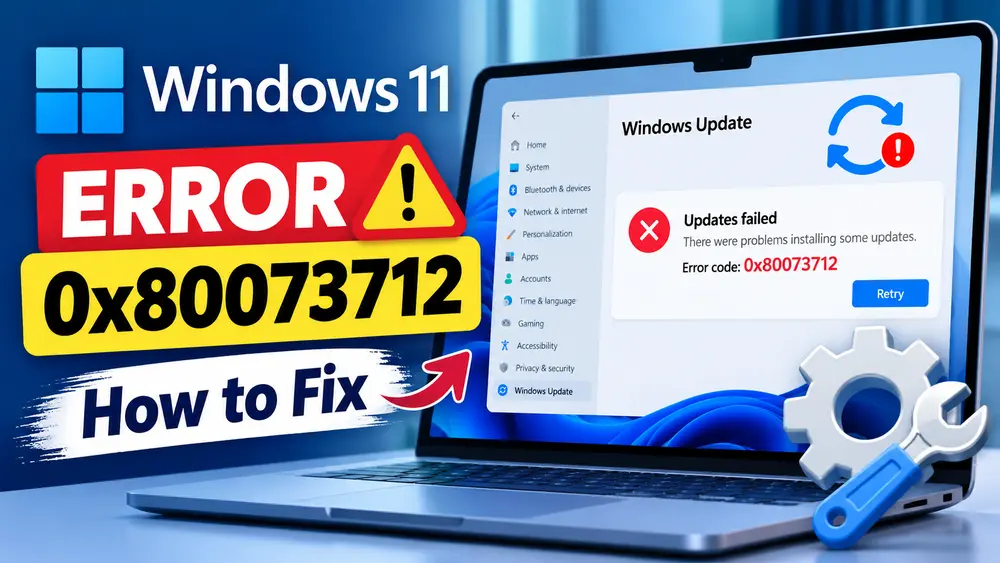
What Does Windows 11 Update Error 0x80073712 Mean?
Error 0x80073712 maps to the Windows servicing error ERROR_SXS_COMPONENT_STORE_CORRUPT. Microsoft documentation describes this state as the component store being inconsistent. Microsoft troubleshooting guidance also associates this error with component-store corruption and recommends investigating the servicing layer rather than treating it as an ordinary download problem.
In practical terms, Windows is having trouble working with the collection of components, manifests, metadata, and files used by its servicing infrastructure.
The term component store is closely associated with the Windows servicing architecture and the WinSxS area. Windows uses this infrastructure to maintain operating-system components and to process packages such as cumulative updates.
Therefore, when you see Windows Update error 0x80073712, the useful question is not simply “Why won’t Windows download the update?” A better question is:
Can Windows still correctly identify and service the components required by this update?
If the answer is no, repairing the servicing image becomes more relevant than repeatedly retrying Windows Update.
What Does 0x80073712 Usually Indicate?
The error code itself provides an important diagnostic clue, but it does not tell you exactly which file or component is damaged. Microsoft identifies 0x80073712 as ERROR_SXS_COMPONENT_STORE_CORRUPT. Other servicing errors can indicate different conditions, such as a missing assembly or missing repair source, so it is important not to treat every Windows Update failure as the same problem.
Possible underlying conditions include:
- Corruption within the Windows component store.
- Inconsistent servicing metadata.
- Component information that Windows cannot resolve correctly.
- Missing or damaged files required by Windows servicing.
- A previous servicing or update operation that left the component state inconsistent.
- A repair operation that does not have access to suitable source files.
These are possibilities, not proof of the exact cause on an individual PC. The most useful confirmation comes from DISM results and, when deeper diagnosis is necessary, the Windows servicing logs.
Common Symptoms of Error 0x80073712
You may encounter the error when installing a cumulative update, quality update, feature-related update, or another Windows component update.
Typical symptoms include:
- Windows Update downloads an update but cannot install it.
- The same update repeatedly fails with 0x80073712.
- Windows displays a message indicating that update files are missing or have problems.
- An update appears to install and then rolls back.
- Several Windows servicing operations begin failing around the same time.
- DISM or SFC reports component or system-file problems.
- Windows Update continues failing even after restarting the PC.
Not every PC will show all of these symptoms. A single failed update can also have an update-specific cause, so checking the update history before making major repairs is worthwhile.
Check Windows Update History Before Repairing Windows
Before running repair commands, identify exactly which update is failing. Windows 11 keeps an update history that can show the update name, KB number, and installation status.
- Open Settings.
- Select Windows Update.
- Select Update history.
- Look through the recent failed updates.
- Record the update name and KB number if one is shown.
Microsoft’s current Windows Update documentation identifies Settings > Windows Update > Update history as the location for viewing installed update history.
This information is useful because it helps distinguish a single package failure from a broader servicing problem.
| What you see | What it may suggest | What to investigate |
|---|---|---|
| One update repeatedly fails with 0x80073712 | The update may be encountering a component-store problem | Run DISM and examine the servicing state |
| Several updates fail with 0x80073712 | A broader servicing problem is more plausible | Check DISM and CBS-related diagnostics |
| DISM reports component-store corruption | The servicing image has detected corruption | Use DISM /RestoreHealth |
| DISM cannot find repair files | The normal repair source may be unavailable or unsuitable | Use an appropriate Windows repair source |
| DISM succeeds but Windows Update still fails | The component store may no longer be the only issue | Run SFC, retry the update, then consider Windows Update-specific repair or reinstall |
Before You Start Repairing the Component Store
DISM and SFC are built-in Windows repair tools, but you should still prepare before making system-level repairs.
- Save any open work.
- Back up important personal files, especially before moving to recovery or reinstall options.
- Keep a laptop connected to AC power.
- Make sure you can sign in with an administrator account.
- Do not close Command Prompt while a DISM or SFC operation is running.
- Allow the repair process to finish even if progress appears slow.
Microsoft also recommends backing up personal files before troubleshooting significant Windows Update problems.
How to Diagnose Windows Component Store Corruption
The most useful built-in diagnostic tool for this particular error is DISM, or Deployment Image Servicing and Management.
Microsoft documents three useful component-store health operations:
- CheckHealth checks whether the image has been flagged as corrupted and whether the corruption is considered repairable.
- ScanHealth performs a more extensive scan for component-store corruption.
- RestoreHealth scans for corruption and attempts to repair the Windows image.
Microsoft’s DISM documentation confirms these functions and their roles in checking and repairing a Windows image.
Optional: Run DISM CheckHealth
Open Command Prompt as administrator and run:
DISM /Online /Cleanup-Image /CheckHealthThe /Online parameter tells DISM to work with the currently running Windows installation. The /Cleanup-Image option enables image servicing operations, while /CheckHealth checks the health state of the image.
This is a quick diagnostic step. It does not replace /RestoreHealth when repair is needed.
For a Deeper Check, Run ScanHealth
If you want to perform a more extensive corruption scan before attempting repair, run:
DISM /Online /Cleanup-Image /ScanHealthMicrosoft describes /ScanHealth as a scan for component-store corruption. It can take several minutes.
If the scan reports corruption, that provides stronger evidence that the component store needs attention.
/RestoreHealth operation is the important repair step.Fix 1: Repair the Windows Component Store With DISM
For Windows 11 update error 0x80073712, this is the central repair step.
Open Command Prompt as administrator and run:
DISM /Online /Cleanup-Image /RestoreHealthThen press Enter and allow DISM to complete.
Microsoft specifically recommends running DISM before SFC when repairing corrupted Windows system files. The /RestoreHealth operation scans the Windows image for component-store corruption and performs repair operations automatically.
What Does DISM /RestoreHealth Actually Do?
The command is not simply another Windows Update reset.
DISM works at the Windows image servicing level. It examines the component store and attempts to repair corruption using an available repair source.
For an online Windows installation, Microsoft explains that DISM can use Windows Update as a source for required repair files. If Windows Update itself cannot provide the necessary files, a different repair source can be specified.
This distinction matters for 0x80073712. If the problem is caused by component-store corruption, repairing the store addresses the layer where the failure occurs.
What the DISM Result Means
Do not simply run DISM and immediately close the window. Read the result.
| DISM result | What it means | Recommended next step |
|---|---|---|
| Operation completed successfully | DISM completed the requested repair operation successfully | Run SFC, restart if appropriate, then try Windows Update again |
| Corruption detected and repaired | DISM found a problem and repaired the affected image data | Run SFC after DISM |
| No component-store corruption detected | DISM did not identify the expected corruption | Investigate CBS/servicing information and the specific update failure |
| Source files could not be found | DISM could not obtain suitable repair files | Provide an appropriate repair source rather than repeatedly rerunning the same command |
| DISM reports the image cannot be repaired | The current image may require a more advanced repair path | Consider a supported repair reinstall or other recovery option |
Microsoft documents that /CheckHealth can indicate whether an image is healthy, repairable, or non-repairable, while /RestoreHealth is used to repair a repairable image.
Fix 2: Run SFC After DISM
Once DISM has successfully repaired the Windows image, run System File Checker.
Open an elevated Command Prompt and enter:
sfc /scannowSFC checks protected Windows system files and attempts to replace corrupted files with a cached copy. Microsoft specifically instructs users to run DISM before SFC because DISM can provide the files required for SFC repair operations.
Allow the scan to reach 100 percent.
Why Run SFC After DISM?
Think of the two tools as operating at related but different levels.
- DISM repairs the Windows component image and component store.
- SFC checks protected system files against known-good versions.
If the component store was damaged, running SFC first may not provide the best repair path because SFC relies on component files that DISM can help restore.
After DISM repairs the underlying image, SFC has a better foundation for repairing individual protected system files.
What If SFC Finds Corrupted Files?
SFC can produce different outcomes.
If SFC reports that it found and repaired corrupted files, restart Windows and then check Windows Update again.
If SFC reports that it found corrupted files but could not repair some of them, do not automatically assume that the Windows Update problem has been solved. The result means some protected system files still require attention.
If SFC reports that it did not find any integrity violations, that does not necessarily prove that Windows Update is healthy. It means SFC did not find the particular protected system-file integrity problems it checks for.
The component-store state and the Windows Update servicing process are related, but they are not identical diagnostic layers.
Retry Windows Update After DISM and SFC
Once DISM and SFC have completed, restart Windows.
Then open:
Settings > Windows Update
Select Check for updates and attempt the failed update again.
If the update installs successfully, the repair was likely sufficient. If the same update still fails with 0x80073712, continue with diagnosis rather than repeatedly running DISM and SFC without learning anything from the results.
What If DISM Cannot Repair the Windows Image?
This is where many troubleshooting guides become misleading. If DISM /RestoreHealth fails, simply running the same command several more times is not a meaningful repair strategy.
One important possibility is that DISM cannot obtain a suitable repair source.
Microsoft documents the ability to specify a known-good repair source with the /Source parameter. The source must contain files appropriate for the Windows image being repaired. Microsoft also documents /LimitAccess, which prevents DISM from contacting Windows Update while performing the repair.
For example, Microsoft documents a repair-source pattern such as:
DISM /Online /Cleanup-Image /RestoreHealth /Source:C:\RepairSource\Windows /LimitAccessThe path above is an example repair-source location. Do not copy it literally unless that directory actually contains a suitable Windows repair source.
How to Investigate the Failure More Deeply
If DISM does not resolve the problem, Windows servicing logs can provide additional evidence.
The CBS servicing log is located at:
C:\Windows\Logs\CBS\CBS.logMicrosoft troubleshooting documentation shows that component-store corruption can appear in CBS logging with entries containing ERROR_SXS_COMPONENT_STORE_CORRUPT or HRESULT 0x80073712. The log can also reveal whether a particular package or component is involved in the failure.
You do not need to read the entire CBS log. If you are investigating a persistent failure, look around the time the update failed and search for terms such as:
0x80073712ERROR_SXS_COMPONENT_STORE_CORRUPTCORRUPTMISSINGHRESULT
This can help determine whether the failure is consistently associated with a particular component or package.
When Should You Reset Windows Update Components?
A Windows Update reset is not the first repair I would use for a confirmed 0x80073712 component-store problem.
The reason is simple: resetting Windows Update primarily addresses the Windows Update mechanism and its cached/update-related state. Error 0x80073712 specifically points toward the Windows component store being in an inconsistent state. Microsoft troubleshooting material separates component-store corruption from other Windows Update failure categories and directs component-store cases toward DISM-based repair.
A Windows Update troubleshooter can still be appropriate if the problem appears to involve the update mechanism in addition to the component store.
On current Windows 11, Microsoft recommends starting with the automated Windows Update troubleshooter in the Get Help app. The traditional troubleshooting location is:
Settings > System > Troubleshoot > Other troubleshooters > Windows Update
Microsoft’s current support guidance documents both the Get Help approach and the Settings-based Windows Update troubleshooter.
If the component store is clearly corrupted, however, do not substitute a generic Windows Update reset for component repair.
What If Windows Update Still Fails After DISM and SFC?
If DISM successfully repairs the image and SFC completes, but Windows Update still returns 0x80073712, the problem may be more persistent than a straightforward component-store repair can resolve.
At this point, check:
- Whether the same update is still failing.
- Whether another update installs successfully.
- Whether CBS.log still reports component-store errors.
- Whether DISM now reports the image as healthy.
- Whether the Windows Update troubleshooter identifies another problem.
- Whether Windows itself offers the option to reinstall the current version to repair system files and components.
This is also the point where repeatedly running DISM /RestoreHealth and sfc /scannow without new diagnostic information becomes counterproductive.
Use Windows 11’s Repair Reinstall as a Later Option
If Windows continues to have system-file or component problems after normal repair attempts, Windows 11 may provide a more direct repair option called Fix problems using Windows Update.
Microsoft says this option reinstalls the same version of Windows already installed on the PC, repairs system files and components, and preserves apps, files, and settings.
When available, the path is:
- Open Settings.
- Select System.
- Select Recovery.
- Look for Fix problems using Windows Update.
- Select Reinstall now.
Microsoft notes that this option may not be available on every PC. For example, it can be unavailable on work or school-managed devices and on some Windows configurations that do not meet the feature’s requirements.
When available, this can be an appropriate escalation for persistent component or system-file problems because it goes beyond simply repairing individual files.
Repair Reinstall vs Reset This PC
Do not confuse a repair reinstall with Reset this PC.
| Option | Typical purpose | Effect on personal files | Effect on apps |
|---|---|---|---|
| DISM /RestoreHealth | Repair the Windows component image | Does not target personal files | Does not remove installed apps |
| SFC /scannow | Repair protected Windows system files | Does not target personal files | Does not remove installed apps |
| Fix problems using Windows Update | Reinstall the current Windows version and repair system files/components | Preserved according to Microsoft | Preserved according to Microsoft |
| Reset this PC — Keep my files | Reinstall Windows when broader recovery is needed | Personal files are retained | Apps and settings are removed |
| Reset this PC — Remove everything | Fresh Windows installation/reset | Removed | Removed |
Microsoft’s recovery guidance distinguishes reinstalling Windows through Windows Update from Reset this PC and from a clean installation. Reset options can remove applications and settings, while a Windows Update repair reinstall is designed to preserve apps, files, and settings.
When Should You Stop Troubleshooting?
You should consider moving to a supported repair or recovery method when:
- DISM repeatedly reports that the image cannot be repaired.
- DISM cannot obtain a suitable repair source.
- CBS.log continues to show component-store corruption after repair attempts.
- SFC continues finding files it cannot repair.
- Windows Update repeatedly fails with 0x80073712 after successful DISM and SFC operations.
- Multiple Windows servicing operations are failing.
- The Windows installation has additional unexplained system problems.
- You are no longer confident that individual command-line repairs are addressing the actual problem.
At that point, continuing to experiment with random registry changes, unofficial repair utilities, or undocumented commands is not a good troubleshooting strategy.
Microsoft’s recovery guidance recommends using progressively more disruptive recovery options when less disruptive approaches do not resolve the problem.
What About Reset This PC?
Reset this PC is a significantly more disruptive option and should not be the first response to 0x80073712.
If you eventually need to use it, Windows 11 provides options such as Keep my files and Remove everything. Microsoft also provides Cloud download and Local reinstall choices. Cloud download obtains a fresh Windows copy, while Local reinstall uses files already stored on the PC.
This distinction matters if the local Windows installation itself is suspected of having damaged or missing files.
A Practical Repair Order for 0x80073712
For most Windows 11 systems showing this specific error, the following sequence keeps the troubleshooting focused:
- Open Settings > Windows Update > Update history and identify the failed update.
- Confirm that the failure is actually associated with 0x80073712.
- Open an elevated Command Prompt.
- Run
DISM /Online /Cleanup-Image /CheckHealthif you want a quick health check. - Run
DISM /Online /Cleanup-Image /ScanHealthif a deeper corruption scan is useful. - Run
DISM /Online /Cleanup-Image /RestoreHealthto attempt repair. - Review the DISM result rather than assuming the repair succeeded.
- Run
sfc /scannowafter DISM completes successfully. - Restart Windows.
- Try Windows Update again.
- If DISM cannot repair the image, investigate a suitable repair source.
- If the component problem persists, consider the Windows 11 repair-reinstall option when it is available.
- Use more disruptive recovery options only when the less disruptive repair paths have failed.
Frequently Asked Questions
What does Windows 11 update error 0x80073712 mean?
Windows error 0x80073712 corresponds to ERROR_SXS_COMPONENT_STORE_CORRUPT, meaning the Windows component store is in an inconsistent state. This can prevent Windows servicing from correctly processing an update.
Is error 0x80073712 a serious Windows problem?
It can be more significant than an ordinary Windows Update download failure because it points toward the component store used by Windows servicing. However, the error does not automatically mean that Windows must be reinstalled. DISM can repair many component-store problems.
Should I run DISM or SFC first?
Run DISM first when repairing this type of Windows servicing problem, then run SFC. Microsoft specifically recommends running DISM before SFC because DISM can provide the files required for SFC repair.
Will DISM /RestoreHealth delete my personal files?
DISM’s online image repair operation is intended to repair the Windows image rather than remove personal files or installed applications. Nevertheless, Microsoft recommends backing up important files before troubleshooting significant Windows Update problems.
Why does Windows Update keep showing 0x80073712?
If the component store remains inconsistent or required servicing data cannot be resolved, the same update can fail repeatedly. If DISM and SFC do not resolve the problem, examine the DISM results and CBS servicing logs instead of simply retrying the update indefinitely.
What if DISM says the source files could not be found?
DISM may need a suitable repair source. Microsoft documents using the /Source option with /RestoreHealth to specify a known-good source. The source must be appropriate for the Windows image being repaired.
Can I reset Windows Update to fix 0x80073712?
A Windows Update reset can be useful for certain update-cache or Windows Update mechanism problems, but 0x80073712 specifically points to component-store corruption. Repairing the component store with DISM should therefore be a central part of troubleshooting this particular error.
What if DISM and SFC both complete but the update still fails?
Check whether DISM reports a healthy or successfully repaired image, review CBS.log around the failure, and determine whether the same component-store error is still being recorded. If the Windows installation continues to have component problems, a supported Windows repair reinstall may be the next appropriate step.
Does the Windows 11 repair reinstall delete my apps and files?
Microsoft’s Fix problems using Windows Update feature reinstalls the current Windows version while preserving apps, files, and settings. Availability depends on the Windows installation and management configuration.
When should I use Reset this PC?
Reset this PC should generally be considered after less disruptive repair methods have failed. Depending on the option selected, it can remove applications, settings, or personal files. Microsoft recommends backing up important data before using recovery options that can cause data loss.
Final Thoughts
Windows 11 update error 0x80073712 is not simply another generic Windows Update error. Its significance is that Windows identifies the problem as ERROR_SXS_COMPONENT_STORE_CORRUPT, pointing toward an inconsistent component store and the Windows servicing infrastructure behind updates.
That is why the most logical repair path starts with the Windows image itself.
Use DISM to check and repair the component store, then run SFC to verify and repair protected system files. If DISM cannot complete because it lacks suitable repair files, investigate the repair source rather than repeatedly executing the same command. If the component store remains damaged despite those steps, Windows 11’s supported repair-reinstall option can provide a more comprehensive repair while preserving the current installation when the feature is available.
The important point is to follow the evidence. A successful DISM repair followed by a clean SFC scan is useful information. A DISM failure, recurring CBS corruption, or an unchanged 0x80073712 result is also useful information because it tells you when to stop repeating basic commands and move to a more appropriate recovery method.