
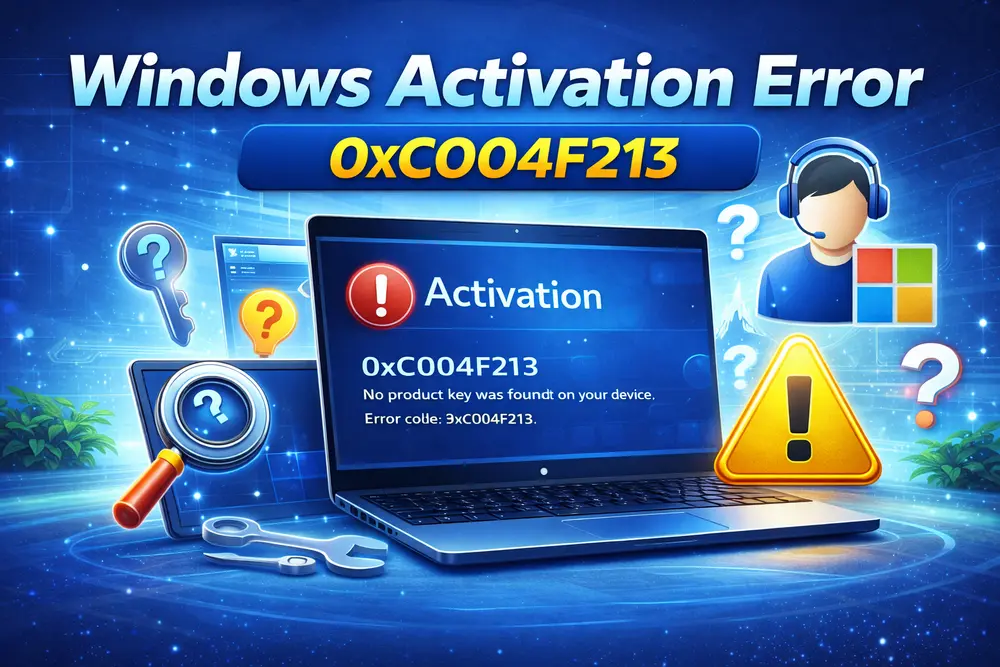
If you are seeing Windows Activation Error 0xC004F213, it means Windows cannot find a valid digital license or product key on your device. This error commonly appears after a motherboard replacement, hardware upgrade, Windows reset, or clean installation.
In this complete guide, you will learn what causes error 0xC004F213 and how to fix it step-by-step on Windows 10 and Windows 11.
What Does Activation Error 0xC004F213 Mean?
Error 0xC004F213 indicates that Windows did not detect a digital license linked to your hardware. In simple words, Windows does not recognize your PC as activated.
You may see a message like:
Windows reported that no product key was found on your device. Error code: 0xC004F213
Why Does Windows Activation Error 0xC004F213 Occur?
- Motherboard replacement
- Major hardware upgrade
- Clean installation of Windows
- Incorrect Windows edition installed
- Digital license not linked to Microsoft account
- BIOS not detecting embedded product key
Quick Fix Checklist
- Restart your computer
- Check internet connection
- Sign in with your Microsoft account
- Run Activation Troubleshooter
- Enter valid product key
Fix 1: Run Windows Activation Troubleshooter
This is the easiest solution.
- Press Windows + I
- Go to System → Activation
- Click Troubleshoot
- Select I changed hardware on this device recently
- Sign in to your Microsoft account
- Select your device and click Activate
This works if your license is linked to your Microsoft account.
Fix 2: Sign In With Your Microsoft Account
If your digital license was linked to your Microsoft account:
- Open Settings
- Go to Accounts → Your Info
- Sign in with your Microsoft account
- Return to Activation page
- Click Activate
This reconnects your digital license.
Fix 3: Enter Your Product Key Manually
If you purchased Windows separately, you may have a 25-character product key.
- Open Settings → System → Activation
- Click Change product key
- Enter your valid 25-character key
- Click Next
Make sure the Windows edition matches your license (Home or Pro).
Fix 4: Check Windows Edition
If you installed the wrong edition, activation will fail.
- Press Windows + R
- Type winver
- Check your edition (Home / Pro)
If your key is for Windows Home but you installed Pro, activation will not work.
You may need to reinstall the correct edition.
Fix 5: Retrieve Product Key From BIOS
Many laptops store the product key in BIOS.
Open Command Prompt as Administrator and run:
wmic path softwarelicensingservice get OA3xOriginalProductKey
If a key appears, copy it and activate Windows using that key.
Fix 6: Contact Microsoft Support
If hardware replacement caused the issue, Microsoft support can reactivate your license manually.
Visit: https://support.microsoft.com
Explain that you replaced hardware and need reactivation.
Important: Motherboard Replacement Scenario
If you replaced your motherboard:
- OEM licenses cannot be transferred
- Retail licenses can be transferred
- You must sign in with linked Microsoft account
OEM licenses are tied to original hardware.
How to Link Your Windows License to Microsoft Account
- Open Settings
- Go to System → Activation
- Under Activation status, check if it says:
“Windows is activated with a digital license linked to your Microsoft account”
If not linked, sign in with Microsoft account.
Prevent Activation Errors in Future
- Always link Windows to Microsoft account
- Keep your product key saved securely
- Avoid installing incorrect Windows edition
- Back up license details before hardware upgrade
Frequently Asked Questions (FAQ)
Is error 0xC004F213 serious?
No, it simply means Windows cannot detect a valid license.
Can I use Windows without activation?
Yes, but personalization features will be disabled and watermark will appear.
Does resetting PC remove activation?
No, unless hardware is changed or wrong edition installed.
Can I transfer OEM license?
OEM licenses are generally tied to original motherboard and cannot be transferred.
Final Thoughts
Windows Activation Error 0xC004F213 usually occurs after hardware changes or clean installations. In most cases, running the Activation Troubleshooter or signing in with your Microsoft account resolves the issue quickly.
If you continue to face activation problems, ensure your Windows edition matches your license and contact Microsoft support for assistance.
For more Windows troubleshooting guides, explore Winoxify — your independent Windows troubleshooting resource.
